


Monday, November 14, 2011

In defaults, you can only watch videos having MPEG-4, H.264, and M4VS formats on iOS devices. To watch video files that have other formats, you must convert them first. With 5 free softs listed here, you can convert you video files easily.
1. Pazera Free Video to iPod Converter

Pazera Free Video to iPod Converter allows us to convert video files (AVI, DivX, XviD, MPEG, MPG, WMV, ASF, MOV, QT, FLV, SWF, MP4, M4V, 3GP, 3G2, MKV, VOB and DAT) to iPod. This soft is rather easy to use.
2. Leawo iPhone Converter

Leawo iPhone Converter is totally free. This soft supports most of video and audio formats, such as AVI, MOV, MP4, MPEG, WMV, ASF, MPG, WMA, 3GP, QT, DV, DAT, RMVB... This soft also allows you split or merge video files.
3. WinX Free iPhone Video Converter

WinX Free iPhone Video Converter is a good software for converting videos. It supports all popular formats (AVI, RM, RMVB, MPEG1/2, MP4, 3GP, 3G2, WMV, ASF, DivX, XviD, FLV). It has a simple interface and runs very fast. This soft also allows you to extract mp3 music from video files.
4. Videora iPhone Converter

Videora iPhone Converter is a free video converter developed by Videora. It can convert popular video formats to play on iPhone. You can also download other softs from Videora for converting video to iPod and iPad.
5. DVDVideoSoft iphone Video Converter

DVDVideoSoft iphone Video Converter helps you convert MP4 video files to play on iPhone. One of the good features of this soft is that you can choose to convert a part of video file. You can also use this soft to convert among popular video formats (target file formats: *.avi, *. mpg, mpeg, *.MPE, *. wmv, *. asf, *. mov, *. qt, *. amv, *. 3gp, *. 3g2, flv, * swf).
Monday, November 14, 2011 1
Tuesday, November 8, 2011

This post shows how to activate the panorama function for iOS5 devices (iPhone 4 or newer, or iPad 2).
For jailbroken devices
Step 1: It’s rather simple. First, go to “cydia/manage/sources/edit/add” and input “apt.thebigboss.org/repofiles/cydia/”. You can skip this step if your device already had.
Step 2: go to search tab, find and install “Firebreak”. Now panorama is ready to use.

For unjailbroken devices
Step 1: you need a computer (Mac or Windows) that can connect with your device (iPhone or iPad 2).
Step 2: Download iBackupBot (for Mac or Win).
Step 3: Run iTunes and backup so that we can use iBackupBot to read and change the backup file from iTunes later. You can use previous backup file.
Step 4: Run iBackupBot and browse to the backup file as shown in the following figure:
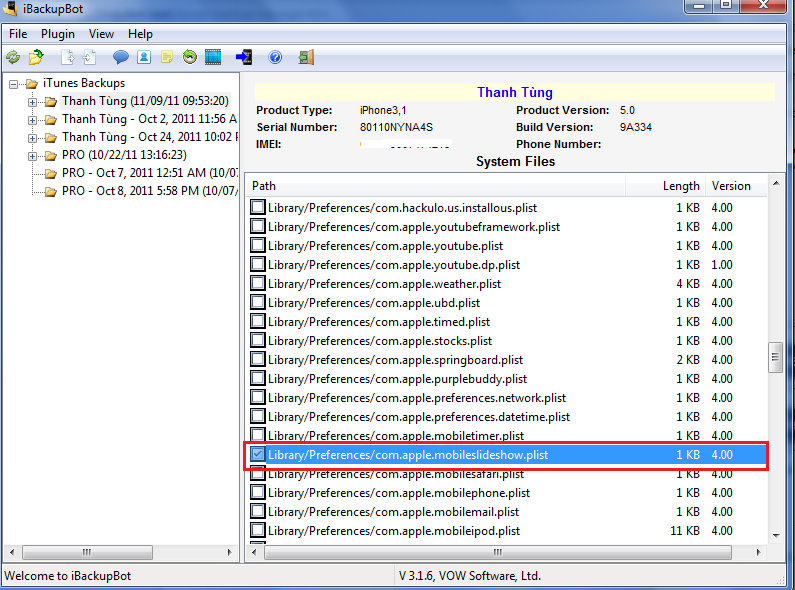
Step 5: find and open “Library/Preferences/com.apple.mobileslideshow.plist”
Step 6: Input a new code chunk: <key>EnableFirebreak</key><string>YES</string> as shown in the following figure.
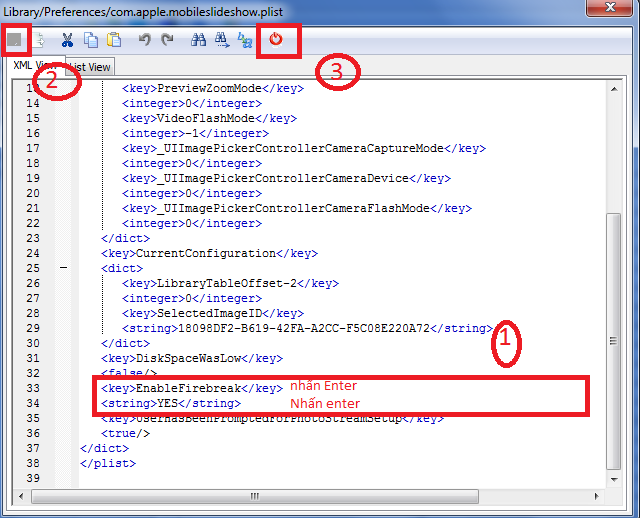
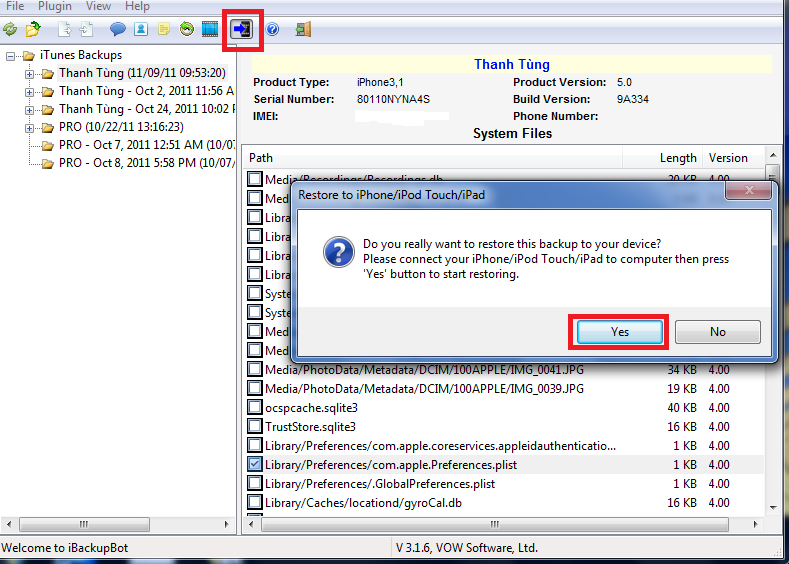
Step 7: choose Save button to save and close the window. In iBackupBot window, choose “restore backup file” and choose “yes” to finish.
Good luck and enjoy.
(ref: 9To5Mac and tinhte.vn)
Tuesday, November 8, 2011 1
Monday, November 7, 2011

Amazon Kindle Fire is a cheap Android tablet while Apple iPad 2 is an awesome device and Samsung Galaxy Tab 7.0 Plus is powered by an amazing Honeycomb OS. It’s rather difficult to choose a tablet among them.
The following table shows the comparison between Kindle Fire, iPad 2, and Galaxy Tab 7.0 Plus. Hope this information is helpful for you to buy a tablet.
|
| Amazon Kindle Fire | Apple iPad 2 | Samsung Galaxy Tab 7.0 Plus |
| Size & weight | 190 x 120 x 11,4 mm, 413 gram | 241,2 x 185,7 x 8,8 mm, 610 gram | 193,65 x 122,37 x 9,96 mm, 345 gram |
| Screen & resolution | IPS LCD, 1.024 x 600 pixel | IPS LCD, 1.024 x 768 pixel | PLS LCD, 1.024 x 600 pixel |
| CPU | Dual-core 1 GHz | Dual-core 900 MHz | Dual-core 1,2 GHz |
| Battery | 8h | 10h | 4.000 mAh |
| OS | Android 2.1 (customized) | iOS 5.x | Android 3.2 Honeycomb |
| Camera | No | VGA in front, the camera in the back can capture HD video | 2 MP (in front), 3 MP in the back can capture HD video |
| RAM | 512 MB | 512 MB | 1 GB |
| Storage | 8 GB | 16/32/64 GB | 16/32 GB |
| Connection | Wi-Fi | Wi-Fi, Bluetooth, 3G (optional), GPS | Wi-Fi, Bluetooth, 3G (optional), GPS |
| Price | 199 USD | 499 USD (16 GB) | 399 USD (16 GB) |
Monday, November 7, 2011 1
Wednesday, July 6, 2011

JailbreakMe has been updated to 3.0 and allows to jailbreak all iOS devices having 4.3.3 or lower versions. Now iPad 2 users can jailbreak and use the device more freely. To jaibreak, you can access to www.jailbreakme.com on the Safari browser of your iOS device and follow their instructions.
Good luck and enjoy!
Wednesday, July 6, 2011 1
Friday, July 1, 2011
iPad is a great device for daily use. It has become a close friend for many people. Therefore, the iPad users need a good note app to take their notes. However, there are many note apps in the Apple store, and therefore it’s not easy to choose an appropriate one. Herein, we list 3 best note apps for you.
1. Evernote (free)
 Evernote has a long history on App Store. I was first released for iPhone with a green elephant icon. This app has been improved a lot to help users take notes easier. All the notes taken by this app will be synced to Evernote server and you can access them from any devices (Wins, Mac, Android devices, Black Berry phones, …) having Evernote installed.
The main interface of Evernote includes tabs:
+ All notes: list all notes by name, date, title, or location. You may view notes with thumbnails or details.
+ Notebooks: list all notebooks. Each notebook contains all notes that belong to one topic. The notebooks help to organize notes so that you can find information faster. However, the free version only has one notebook.
+ Tags: organize notes by tags.
+ Places: display the locations of notes.
+ Searches: save the notes that have been searched to save your time.

To create a new note, just touch on “New note” button at the bottom. A new dialog will display for you to write down the note.

Simple interface is the strong point of Evernote. With the Voice Record button placed at the corner, you can easily add a voice note. You can insert a picture into notes by using the “Insert Image” button located right besides the “Voice Record” button.

After creating notes, you can share them on social networks (Facebook, Twitter), via email, or AirPrint using “Share” button.

Remarks: Evernote provides all basic functions for taking notes. However, input note contents is rather complex compared to other apps. You can not customize your notes such as changing fonts, font sizes, and colors. Some important features are only available with a paid version.
2. Catch Notes (free)
Similar to Evernote, Catch Notes allows you to sync notes to server and access them from other devices. Compared to Evernote, Catch Notes provides fewer functions but it has simpler interface and we can take note easier.

You can insert voice memo or images into notes using buttons at the right corner of the app. This app will start record right away after you click the record button, and therefore helping your catch an event in time. However, with this feature, sometimes, you record waste memos.

Unlike Evernote, you can view your notes including text and media online at the website: https://catch.com/m/. This feature is great. The paid Catch account also allows you to attach MS Office and PDF files.
You can add location tags to your notes after turning on this option in the Setting of this app. The sharing feature of this app is not as good as in Evernote. You only can email your notes to others. However, media is included in the message.
3. Notes Plus

It’s worth to pay some money for this app because it supports many good features. The interface of this app is similar to that of the default note program in iPad. The interface include 2 parts: titles and contents. You can view and manage your notes very easy and conveniently.
To start write down a new note by virtual keyboard, just touch the screen by 2 fingers. With one finger, you can draw on the “paper”. You can take note easier with a touch pen.

Notes Plus allows you customize your notes with many kinds of brushes, colors, and fonts.

Notes Plus also contains an intelligent algorithm to detect the shapes when you draw. Thus, it can correct your drawing objects for a better look. If you want to draw free shapes, you can press the button “Don’t detect shape”.
With each note, you can write down in many pages. You can move among pages using the arrows at the bottom.

With Notes Plus, you can export notes into several formats, such as images and pdf files , and upload them into Google Docs.

Remarks: this app provides many good features for taking notes, especially the Stylus pen. With this app, you don’t need a paper note anymore. You can save, upload, and share notes easily.
Good luck with your choice!
Friday, July 1, 2011 1
Friday, June 24, 2011

Even though you have set the passcode for your iPad, other people may see your photos via the Photo Slideshow button on the locked screen. If you want, you can hide this button using following steps:
(note that you cannot hide the Photo Slideshow without setting a passcode for you iPad)
1. Go to Settings
2. Choose General
3. Choose Passcode Lock
4. Choose “Turn Passcode On”

5. After that, the option “Picture Frame” will be displayed.
6. Change “Picture Frame” to Off

The Photo Slideshow button is now disappeared!

Friday, June 24, 2011 0
Sunday, June 19, 2011
Although there are many good Android devices in the market, many more Android smart phones and tablets supporting 3D display and 4G connection will come soon! If you are a fan of Android, save your money from now ^^
1. Samsung Galaxy Tab 10.1 (LTE)

Galaxy Tab 10.1 wifi version has been released but the LTE version is even more awaited. With a slim design, excellent display, and high speed LTE connection, this tablet may be a good competitor with iPad 2. It will be available in the market in this summer.
2. Motorola Droid 3

Since the first Droid smart phone appeared in the end of 2009, it has shown us the power of Android OS. After almost 3 years, Droid 3 will be announced with several improvements, such as new keyboard design, qHD 16:9 wide screen, and powerful dual-core processor.
3. Samsung Galaxy S II

The users in Europe has been touched to Galaxy S II. However, fans of Galaxy S II in other regions must wait some more time. Galaxy S II owns a beautiful and big Super AMOLED screen, allowing to watch videos and surf web more enjoyable! It’s also very powerful and light.
4. Motorola Droid Bionic

Droid Bionic is a new version of the successful Droid Incredible. Similar to other upcoming devices, Droid Bionic owns a dual-core processor and high speed LTE 4G connection. It has a big screen and is installed the latest Android OS. It will be available at the end of 2011.
5. Toshiba Thrive

If you want to have many connection ports on a tablet, Toshiba Thrive should be such device for you. This device has one full-size USB, one SD slot card reader, and one HDMI output port. With Toshiba Thrive you can connect with most of other devices. It also has a good file management software. This tablet may be a good alternative to netbook.
6. HTC EVO 3D

Now you can hear about 3D everywhere. If you want to have a smartphone having 3D capability, HTC EVO 3D is a good device for you. You can capture 3D images and videos with this smartphone. However, don’t expect to much about the 3D quality because we are in a early stage of 3D technology. 3D also make your eyes tired if you watch videos in a long time.
7. Motorola Photon 4G

This is the first Motorola smartphone supporting WIMAX. This phone has a dual-core processor as same as Motorola Atrix. This phone will run Android 2.3 OS. If you want to play games with a big screen, you can connect this phone with TV.
8. Nexus 3 (4G)

Not much information available about this smartphone. It will be announced in the end of 2011. Nexus 3 (4G) will be the first smartphone run Android 4.0 (Ice Cream Sandwich) OS. This new OS will reduce the gap between Android OS based smartphone and tablet.
9. Asus Padfone

This device contains an interesting design. A tablet and a smartphone are combined in a same device. The smartphone will be placed in the back of the tablet. When the smartphone is docked in this place, you can use this tablet will all functions supported from the smartphone. We need more time to evaluate its applicability.
10. Motorola Xoom 2

Motorola Xoom has been not successful as expected. However, at least, we can have some experience about Android 3.0 OS with this device. From leaked information, Motorola may announce the next version Motorola Xoom 2 soon. Hope there are many new features in this device. This new device may own a very powerful quad-core Tegra 3 and become the most powerful tablet.
Sunday, June 19, 2011 2
Thursday, June 16, 2011

One new feature of iOS 5 has been found. iOS 5 allows people to combine iPad, iPhone, and Apple TV as a game console.
We now can display video contents from iPhone or iPad to a TV via the Apple TV. With iOS 5, developers can build applications having an ability to choose which video contents to display on TV. By this way, the users can display the game interfaces on TV and use iPhone or iPad as a joystick! Thus, you can have a new game console with the new iOS 5 without buying other devices!
Thursday, June 16, 2011 0